
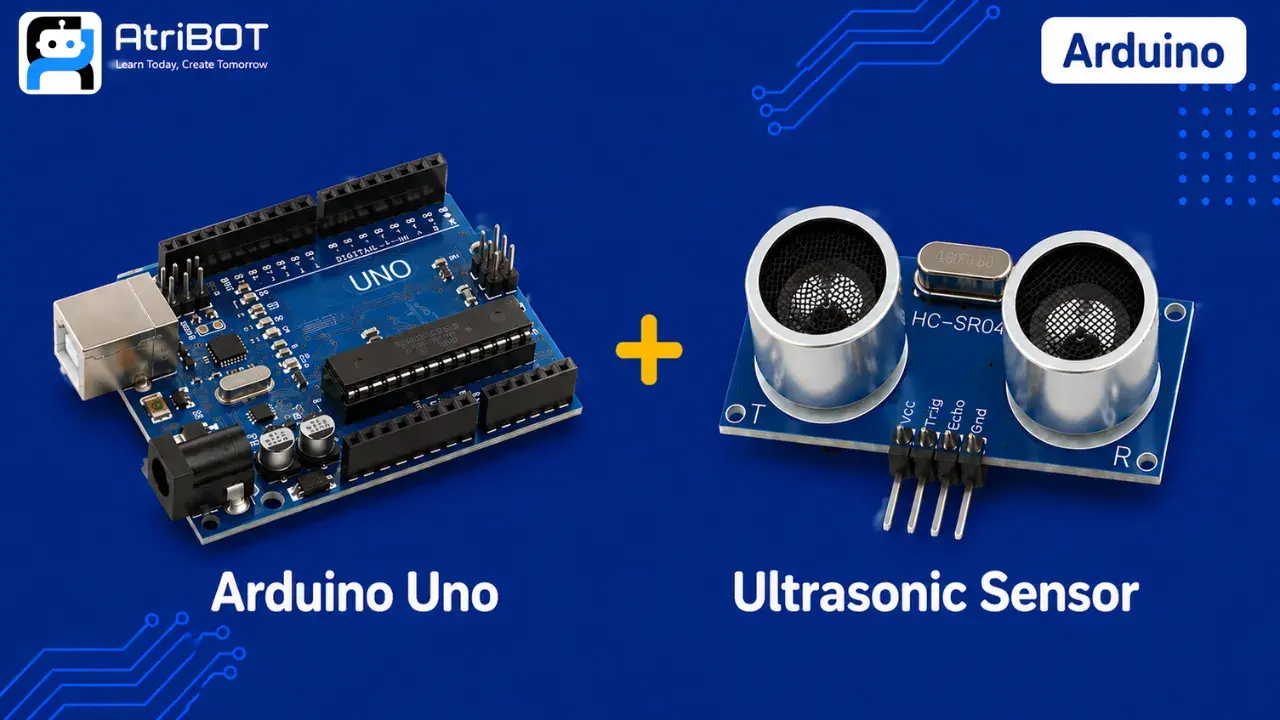
HC-SR04 Ultrasonic Sensor with Arduino UNO

Written by
Atribot team
Last updated
June 18, 2026
Introduction
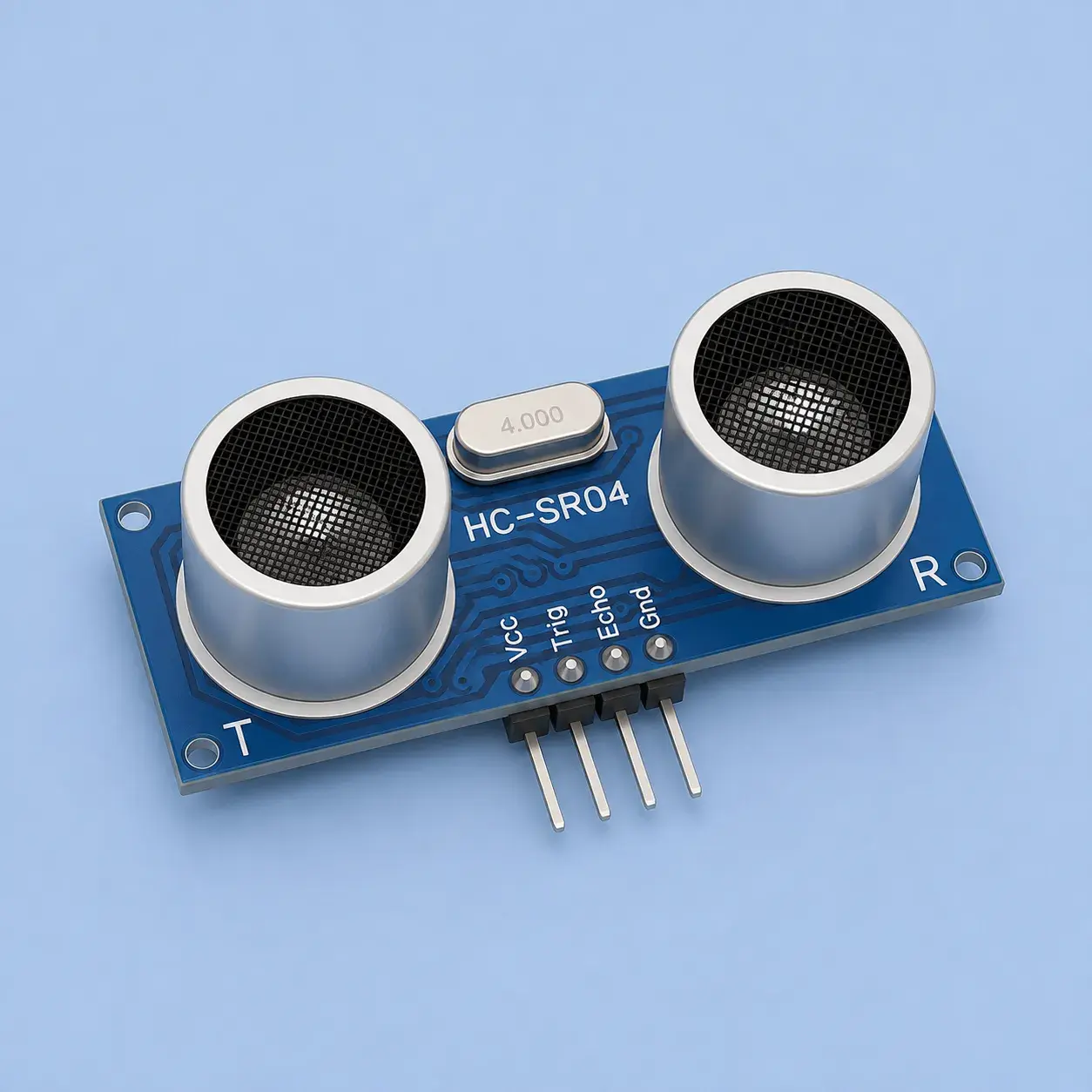
The HC-SR04 Ultrasonic Sensor is one of the most popular distance-measuring sensors used in Arduino projects. It works by transmitting ultrasonic sound waves and measuring the time taken for the echo to return after hitting an object.
In this tutorial, you will learn how to connect the HC-SR04 Ultrasonic Sensor to an Arduino UNO, upload the required code, and measure distances in centimeters using the Serial Monitor. This project is ideal for beginners interested in robotics, automation, and obstacle detection systems.
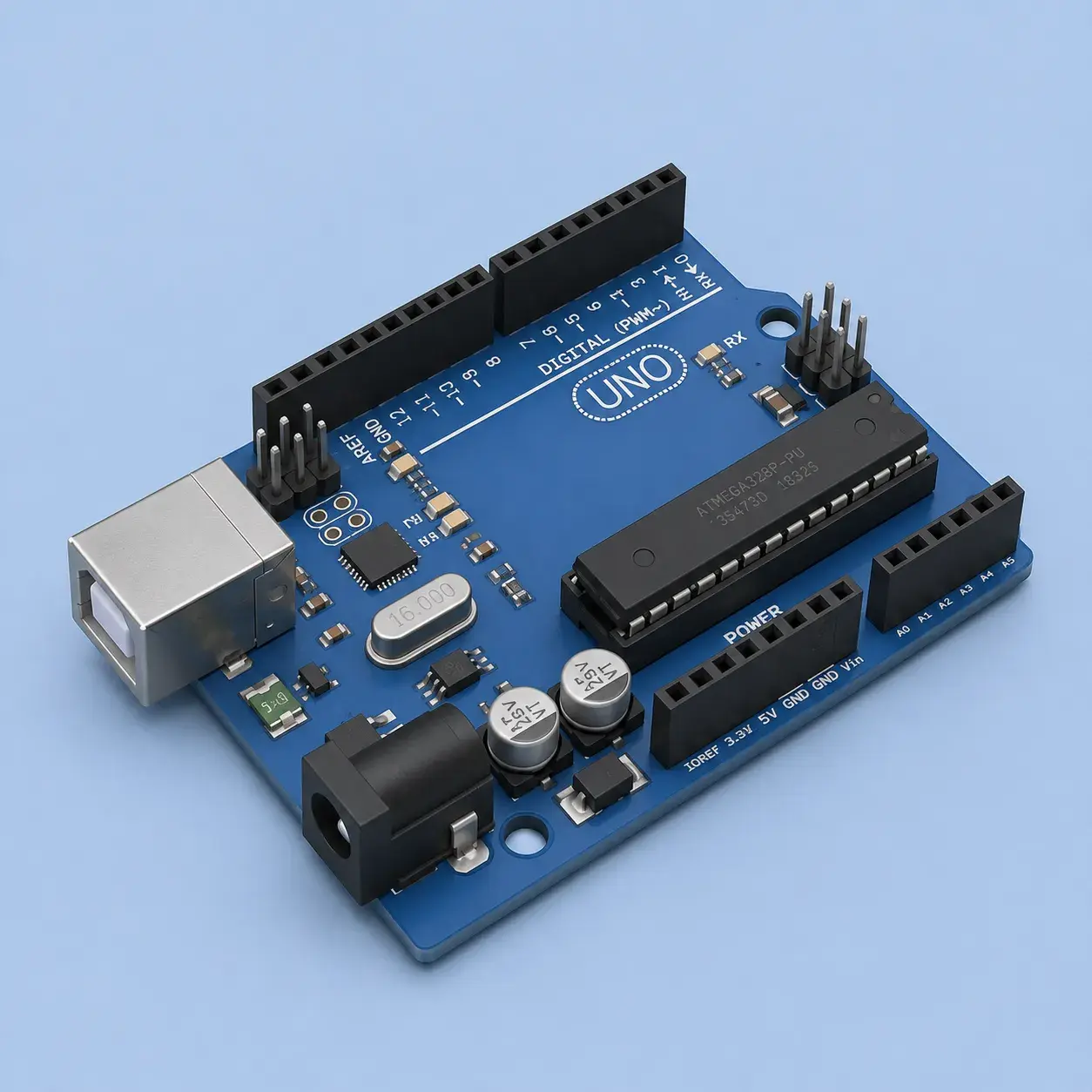
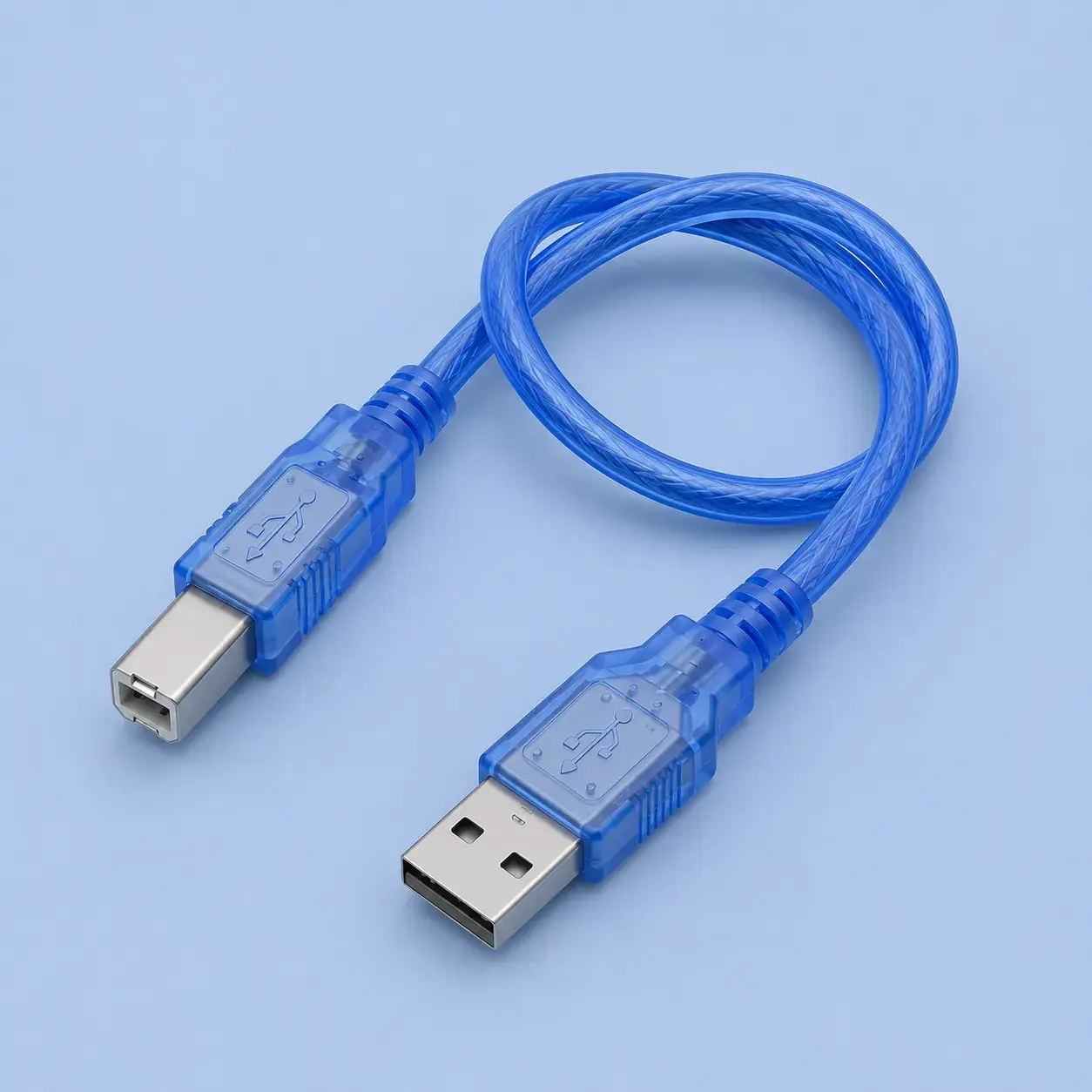
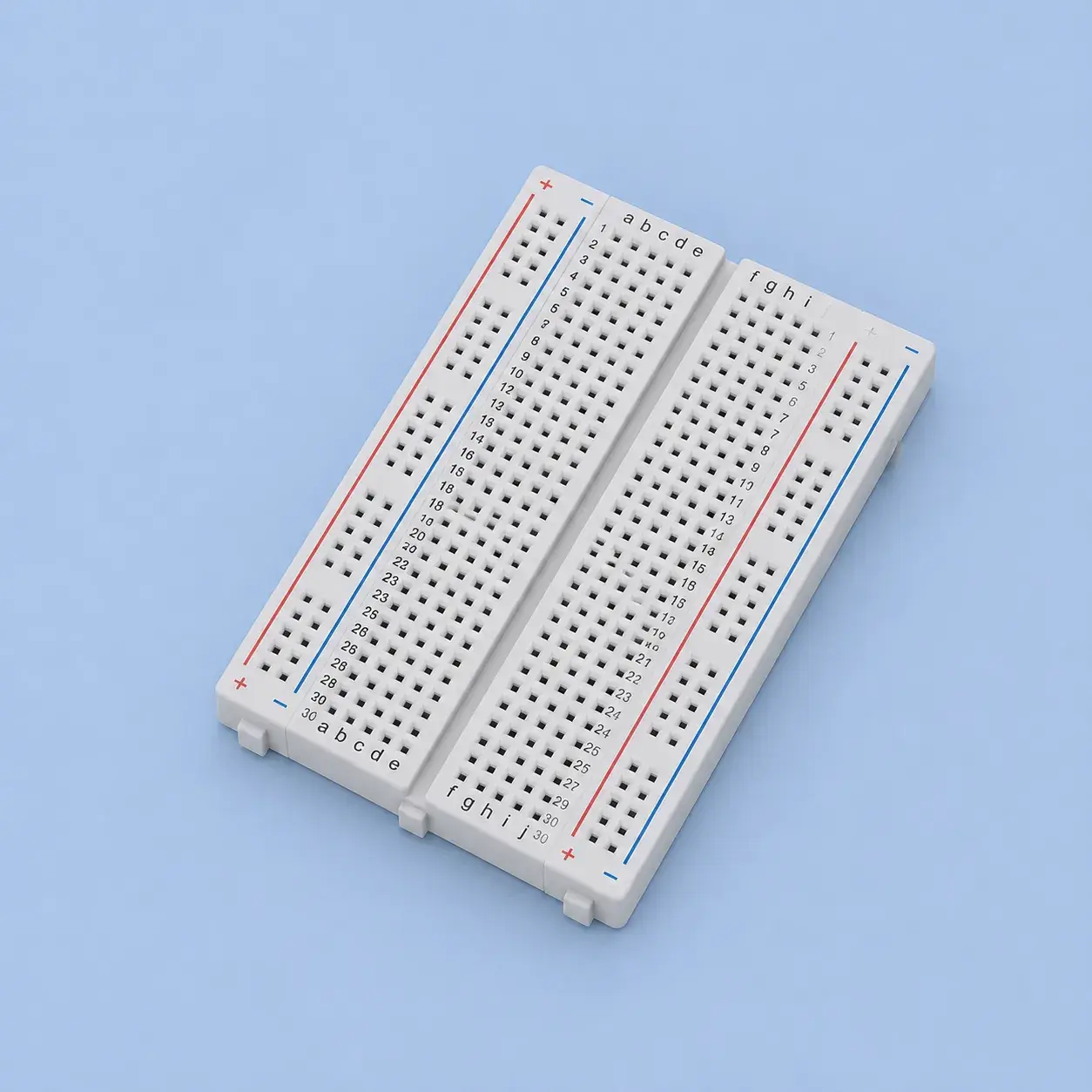
Components Required

Tools Required


Software Required
| Item Name | Action |
|---|---|
Arduio IDE | Download |

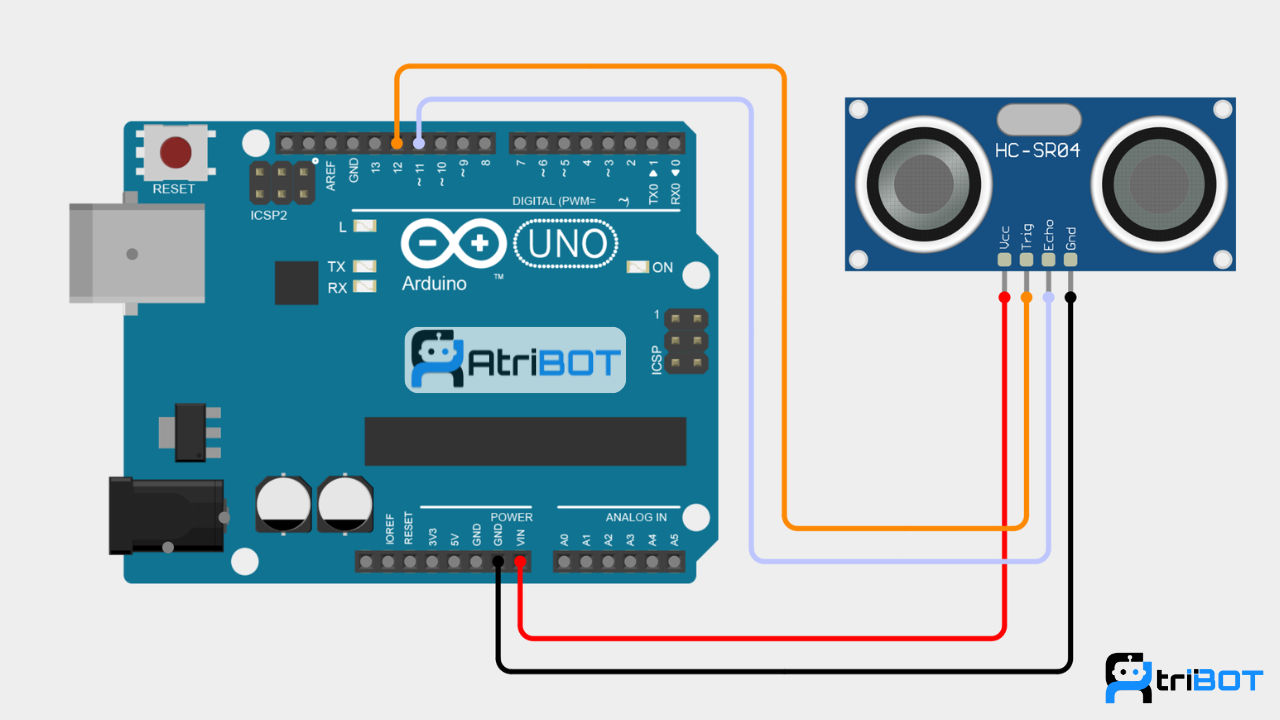
Circuit Diagram
Source Code
const int trigPin = 12;
const int echoPin = 11;

long duration;
float distance;

void setup()
{
  pinMode(trigPin, OUTPUT);
  pinMode(echoPin, INPUT);

  Serial.begin(9600);
}

void loop()
{
  digitalWrite(trigPin, LOW);
  delayMicroseconds(2);

  digitalWrite(trigPin, HIGH);
  delayMicroseconds(10);
  digitalWrite(trigPin, LOW);

  duration = pulseIn(echoPin, HIGH);

  distance = duration * 0.034 / 2;

  Serial.print("Distance: ");
  Serial.print(distance);
  Serial.println(" cm");

  delay(500);
}Step by Step Instructions
Step 1: Connect the Sensor
Make the following connections:
HC-SR04 | Arduino UNO |
|---|---|
VCC | 5V |
GND | GND |
TRIG | D12 |
ECHO | D11 |
Step 2: Open Arduino IDE
Launch Arduino IDE.
Connect Arduino UNO using USB.
Select:
Board → Arduino UNO
Port → Correct COM Port
Step 3: Create a New Sketch
Create a new Arduino sketch and paste the provided code.
Step 4: Verify the Code
Click the Verify button to check for syntax errors.
Step 5: Upload the Code
Click Upload and wait until the upload process completes successfully.
Step 6: Open Serial Monitor
Open Serial Monitor.
Set baud rate to 9600.
Place an object in front of the sensor.
You will see the measured distance displayed continuously.